
A dynamic QR code has two parts: the printed image, which never changes, and the destination it points to, which you can edit at any time from your dashboard. Creating one takes five short steps.
Steps
- In your dashboard, open QR Codes and choose New code.
- Pick the code type. URL is the common case; you can also point a code at a hosted file, a vCard contact, a calendar event, an app download link, a hosted page you build here, or a GS1 Digital Link.
- Enter the destination. For a URL code you can add UTM parameters with the built-in builder so campaign scans are attributed correctly in your analytics tool.
- Style the code: colours, corner shapes, an optional logo, and a frame. Keep a strong contrast between the dots and the background or scanners will struggle (see the printing guide).
- Save, then download the image (PNG or SVG) and test it with your phone before you print anything.
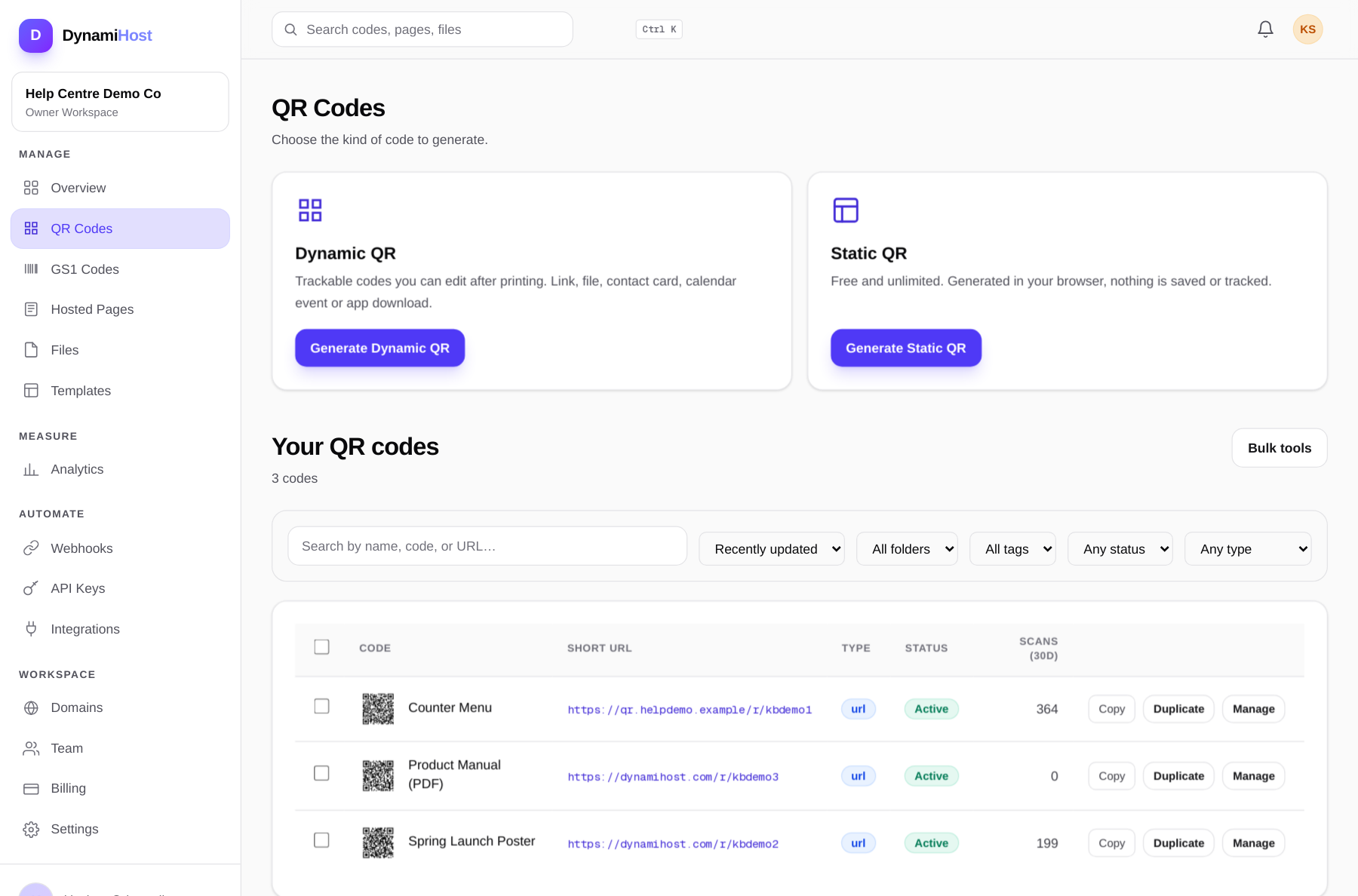
After you save
- The code appears in your codes list with its short link, scan count and status.
- Editing the destination later does not change the printed image. The same printed code follows the new destination on the next scan.
- You can organise codes into folders and tags, and clone a code when you need a second one with the same styling.
Print one copy and scan it yourself first. Most problems are found in ten seconds at this stage, not after a print run.